Mostrando entradas con la etiqueta Oracle Audit Vault Server. Mostrar todas las entradas

martes, 28 de mayo de 2019

How to block a Session from a specific IP in Oracle Database Firewall


Environment:

  • 1 Audit Vault Server
  • 1 Database Firewall (Configured as Proxy in 192.168.56.11:5557)
  • 1 Oracle Database  (Listener: 192.168.56.30:1521/orcl)
  • 1 Oracle Client (192.168.56.30)

With Oracle Database Firewall I will create an "Exception" that uses a "IP Address Set" to block a Session being created from an Oracle Client with IP 192.168.56.30


Checking that we can connect from the machine with IP 190.168.56.30:


[oracle@db12c ~]$ sqlplus dgomez/dgomez@192.168.56.11:5557/orcl

SQL*Plus: Release 12.1.0.2.0 Production on Wed Jun 12 04:56:32 2019

Copyright (c) 1982, 2014, Oracle.  All rights reserved.

Last Successful login time: Wed Jun 12 2019 04:56:28 -06:00

Connected to:
Oracle Database 12c Enterprise Edition Release 12.1.0.2.0 - 64bit Production
With the Partitioning, OLAP, Advanced Analytics, Real Application Testing
and Unified Auditing options

SQL> select * from dgomez.allowed;

COL1
--------------------
DEIBY

SQL>


Login into Oracle Audit Vault Server Web Console:


Click in "Policy" and then "Create Policy":


Select Database Type, Policy Name, and Description. The Database Type should be according the the Database we are monitoring with Oracle Database Firewall, in my case, of course Oracle Database.


You will see all the sections that we can fill up in order to Block/Allow operations against the database, we can custom this as much as we want. Click in "IP Address Sets" under "Policy Controls":


Click in "Create New Set":


Type the name of the New Set, and also the IP that will be used by the "Exception". In this case, the IP that we want to block.


Verify that the IP Address Set was added correctly:


Now come Back to the "Policy Overview" Page, click in the title:


Click in "Add Exception" under "Exception Rules":


Type the name of the Exception Rule, in the section "Profile Sets" select "include" for "IP Address Set" and select the IP Address Set that was created before, in my case "IP Address set 1".
In the Section "Policy Controls" select "Block" for "Action", you can select any value for "Logging Level" and "Threat Severity".


Click in "Save" button.


Verify that the Exception rule was created successfully:


Come Back to the "Policy Overview" Page, click in the title:


Click in "Save":


Click in "Publish":


Verify that the new Policy was created successfully:


Now it's time to tell the Database Firewall which Policy should use for our Database.
Click in "Secured Targets", the Oracle Database will be there, select it. In my case the Secured Target is "db12c". If you don't know how to create a "Secured Target" check my previous article [How to configure Oracle Database Firweall as Proxy in DPE Mode].


Expand the section "Firewall Policy":


Select the Policy that was created before in this article, in my case "Policy1":


Verify that Secured Target is using the correct Policy:


Now it's time to test the configuration.

From the Oracle Client (192.168.56.30) I will try to connect to the Database through the Oracle Database Firewall which is configured as Proxy.

Check the IP of Oracle Client:

[oracle@db12c ~]$ ifconfig|egrep -A1 enp0
enp0s3: flags=4163<UP,BROADCAST,RUNNING,MULTICAST>  mtu 1500
        inet 192.168.56.30  netmask 255.255.255.0  broadcast 192.168.56.255


Opening a new Session:

[oracle@db12c ~]$ sqlplus dgomez/dgomez@192.168.56.11:5557/orcl

SQL*Plus: Release 12.1.0.2.0 Production on Wed Jun 12 04:59:40 2019

Copyright (c) 1982, 2014, Oracle.  All rights reserved.


<< The Session just hang here indefinitely >>


If there was a session already Open at the time we set the Policy for this database, then the session will not able to perform any operation as you can see bellow, the session will get the error ORA-00900 for new upcoming operations:

SQL> select * from dgomez.allowed;
select * from dgomez.allowed
*
ERROR at line 1:
ORA-00900: invalid SQL statement


SQL>


Additional, I saw that if in the "Exception Rule" we put a text in "Substitution" field, then a different error is received when a new session is created.

Using "Tests 1" in "Substitution" field:


Error received when "Substitution" is specified:

[oracle@db12c ~]$ sqlplus dgomez/dgomez@192.168.56.11:5557/orcl

SQL*Plus: Release 12.1.0.2.0 Production on Wed Jun 12 05:13:20 2019

Copyright (c) 1982, 2014, Oracle.  All rights reserved.

ERROR:
ORA-00900: invalid SQL statement

ERROR:
ORA-00900: invalid SQL statement

Error accessing PRODUCT_USER_PROFILE
Warning:  Product user profile information not loaded!
You may need to run PUPBLD.SQL as SYSTEM
ERROR:
ORA-00900: invalid SQL statement

Error accessing package DBMS_APPLICATION_INFO

SP2-0575: Use of Oracle SQL feature not in SQL92 Entry Level.


Configure Oracle Audit Vault Server in High Availability

Version of Oracle Audit Vault Server to use in this article: 12.2.0.10.0

IP of the Primary Audit Vault Server: 192.168.56.20
IP of the Secondary Audit Vault Server: 192.168.56.40


Configuring the Secondary Oracle Audit Vault Server

Login in to Oracle Database Firewall web console of the Primary Oracle Audit Vault Server:


In the "Settings" tab of Primary Audit Vault Server, from the "Security" menu, click "Certificate".
Copy the certificate.


In another browser window, log in to Secondary Audit Vault Server as a super administrator.
In the Secondary Audit Vault Server web console, click the "Settings" tab.
From the "System" menu, select "High Availability".
Click in “Configure this server as: Secondary Server
In the Peer System IP Address field, enter the IP address of Server1.
In the Peer System Certificate field, paste the certificate of Server1.
Click Save.


Configuring the Primary Oracle Audit Vault Server

Log in to Secondary Audit Vault Server as an administrator.


In the Settings tab of Server1, from the Security menu, click Certificate.
Copy the certificate.


In another browser window, log in to Primary Audit Vault Server web console as a super administrator.
In the Primary Audit Vault web console, click the "Settings" tab.
From the "System" menu, select "High Availability".
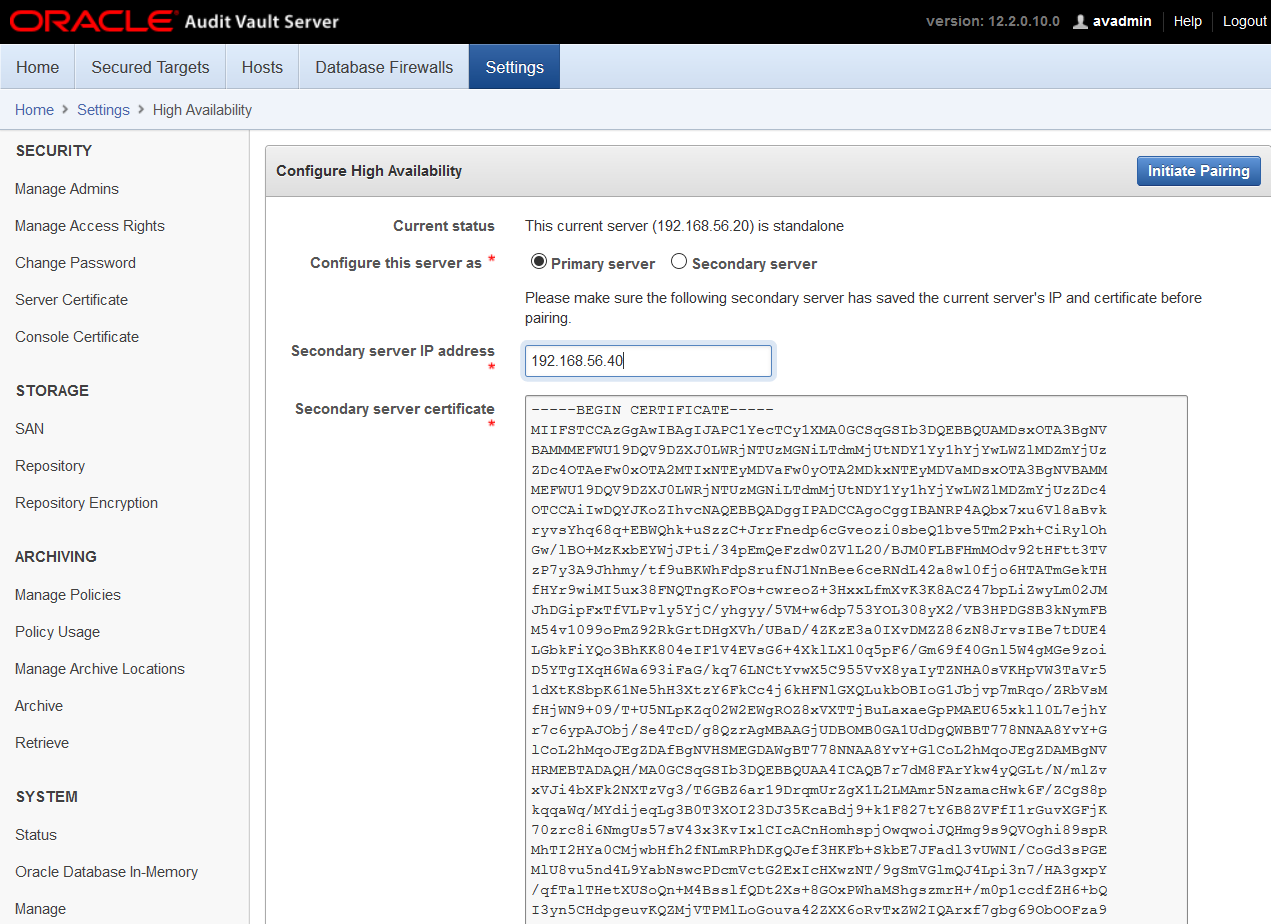
Select the checkbox "Configure this system as:  Primary server".
In the Peer System IP Address field, enter the IP address of Secondary Audit Vault Server.
In the Peer System Certificate field, paste the certificate of Secondary Audit Vault Server.


Click in "Initiate Pairing"
A message will appear asking if you are sure. Click in "OK".


A message will appear saying the configuration will be completed in around 10 minutes:


During the Pairing Process I took a look into the Primary Database to understand how the High Availability configuration is done. First I saw that the Primary database was in “No Archive log” mode.

SQL> archive log list
Database log mode              No Archive Mode
Automatic archival             Disabled
Archive destination            USE_DB_RECOVERY_FILE_DEST
Oldest online log sequence     6
Current log sequence           8
SQL>
SQL>

 There was not Data guard Configuration:

[oracle@avs08002778ad2b ~]$ dgmgrl /
DGMGRL for Linux: Version 12.1.0.2.0 - 64bit Production

Copyright (c) 2000, 2013, Oracle. All rights reserved.

Welcome to DGMGRL, type "help" for information.
Connected as SYSDG.
DGMGRL> show configuration;
ORA-16525: The Oracle Data Guard broker is not yet available.

Configuration details cannot be determined by DGMGRL
DGMGRL> exit


But after some minutes I saw the Primary Database was working in Archive Log Mode.

SQL> archive log list
Database log mode              Archive Mode
Automatic archival             Enabled
Archive destination            USE_DB_RECOVERY_FILE_DEST
Oldest online log sequence     7
Next log sequence to archive   9
Current log sequence           9
SQL>

That made me think that the High Availability configuration for Oracle Audit Vault servers is done with Oracle Data Guard, then I decided to check:

DGMGRL> show configuration;

Configuration - DBFWDB

  Protection Mode: MaxPerformance
  Members:
  DBFWDB_HA1 - Primary database
    DBFWDB_HA2 - Physical standby database

Fast-Start Failover: DISABLED

Configuration Status:
DISABLED

DGMGRL>

And after some minutes the Data Guard Configuration was working fine:

DGMGRL> show configuration;

Configuration - DBFWDB

  Protection Mode: MaxPerformance
  Members:
  DBFWDB_HA1 - Primary database
    DBFWDB_HA2 - (*) Physical standby database

Fast-Start Failover: ENABLED

Configuration Status:
SUCCESS   (status updated 13 seconds ago)

DGMGRL>

There is another nice script provided by oracle to check the status of the Audit Vault Server High Availability configuration:

[oracle@avs08002778ad2b ~]$ /usr/local/dbfw/bin/setup_ha.rb --status
HA mode:                   PRIMARY
HA server 1:               192.168.56.20
HA server 2:               192.168.56.40
Unique database name:      DBFWDB_HA1
Current database role:     PRIMARY
Data guard broker:         ENABLED
Data guard observer:       YES
Current log mode:          ARCHIVELOG
Logging forced:            YES
Flashback mode:            YES
Current open mode:         READ WRITE
Switchover status:         TO STANDBY
Automatic failover:        ENABLED
Failover status:           TARGET UNDER LAG LIMIT
Missing listener services: NONE
Archive destination:       ENABLE
Recovery mode:             MANAGED REAL TIME APPLY
FRA size:                  47,244,640,256
FRA used:                  2,189,426,688
FRA reclaimable:           1,113,587,712
FRA available:             46,168,801,280
Gap status:                NO GAP
Archived sequence:         13
Applied sequence:          12
Apply lag:                 0:00:21
[oracle@avs08002778ad2b ~]$

All the options of the script:

[oracle@avs08002778ad2b ~]$ /usr/local/dbfw/bin/setup_ha.rb -h
Usage: /usr/local/dbfw/bin/setup_ha.rb configure [options]
    -v, --verbose                    Verbose mode
    -R, --randompassword             Create random SYS password
        --syslog                     Send the output to the syslog instead of stdout
        --foreground                 Run all operations in foreground
        --standby                    Configure standby database (internal)
        --configure                  Configure HA on primary and standby systems
        --unconfigure                Unconfigure existing HA system
        --synchronize                Synchronize data not stored in the database
        --switchover                 Swap primary and standby roles
        --post_switchover            Execute actions on new primary after the database switchover completes (internal)
        --post_primary_upgrade       operations on standby after primary upgrade(Internal)
        --database_key_info          Collect database key info (internal)
        --system_properties          Collect system properties (internal)
        --storage_configuration      Export storage configuration (internal)
        --failover                   Failover to standby database
        --disable_failover           Disable automatic failover
        --enable_failover            Enable automatic failover if it was previously disabled. The automatic failover is enabled by default.
        --process_status             Return the status of setup_ha process as exit code
        --dg_status                  Print Data Guard Broker status
        --handle_role_change         Handle role change
        --status                     Print HA configuration status
        --ha_role                    Return HA role as exit code
        --partner_ha_role            Return partner HA role as exit code
        --check_cfg                  Check the AVS HA configuration (internal)
        --correct_ha                 Check the AVS HA settings and correct if necessary (internal)
        --test_settings              Test if the system settings are correctly configured for HA
        --update_partner_ip IP       Update the configuration file with the new IP of the other AVS
    -h, --help                       Show this message
[oracle@avs08002778ad2b ~]$


After to wait some minutes. The High Availability was completed, we can check the current status in the web console of the primary Oracle Audit Vault Server. If you try to access the web console of Secondary Oracle Audit Vault server you will be redirected automatically to the primary one. 


For Failover, take in consideration the following:

When failover is enabled, during normal operation, the system periodically checks the availability of the primary Audit Vault Server in the resilient pair.

Note the following scenarios:


  • If the primary Audit Vault Server becomes unavailable, the system automatically fails over to the secondary Audit Vault Server after a 10 minute delay. The delay prevents a failover due to a reboot of the primary server.
I confirmed that after 10 minutes the Failover was performed:

DGMGRL> show configuration;

Configuration - DBFWDB

  Protection Mode: MaxPerformance
  Members:
  DBFWDB_HA2 - Primary database
    Warning: ORA-16829: fast-start failover configuration is lagging

    DBFWDB_HA1 - (*) Physical standby database (disabled)
      ORA-16661: the standby database needs to be reinstated

Fast-Start Failover: ENABLED

Configuration Status:
WARNING   (status updated 26 seconds ago)


  • If the primary Audit Vault Server is manually shut down, the failover process is not triggered. If you bring the primary Audit Vault Server back online, then it continues in high availability mode.
  • If the primary Audit Vault Server is manually shut down and reinstalled or replaced with another server, then you must perform the following procedure:


    • Manually failover the current standby server by issuing the following command as the oracle user:  /usr/local/dbfw/bin/setup_ha.rb --failover
    • Then log in to the Audit Vault console as the super administrative user so that you can unpair the two servers.
    • Select Settings, and then select High Availability.
    • In the High Availability status page, click the Unpair button.
    • Copy the new certificates between the two Audit Vault servers.
    • Initiate the high availability setup again by clicking the Initiate Pairing button.


  • In the event of a failover, the secondary server becomes the new primary Audit Vault Server. You must do the following to configure this primary server, and repeat the high availability pairing:


    • Log in to the Audit Vault Server console as a super administrator.
    • Click on the Settings tab.
    • Select Settings, and then select High Availability.
    • In the High Availability Status page, unpair the new primary server to convert it to a standalone server by clicking on the Unpair button.
    • On the standalone server, configure the network and services settings (for example DNS settings).
    • On the standalone server, manually mount any remote filesystems (NFS shares) defined as archive locations, using this AVCLI command: ALTER REMOTE FILESYSTEM filesystem_name MOUNT
    • Disconnect the failed server and replace it. The replacement server can now be configured as the new secondary server.
    • Follow the configuration steps again to pair the two Audit Vault Servers.


How to Install Oracle Audit Vault Server 12c


Version of Oracle Audit Vault Server to install: 12.2.0.10.0 for Linux


Firstable you have to download the ISOs Files from edelivery.oracle.com


Insert the ISO for "Disk 1" and you will see the installation screen. Selects "Install (wipes system)":


The installation will start automatically:


The installation will request to insert the Disk 2:


The installation will continue:


The installation will request the Disk 3:


The installation will continue automatically:


The installation will request again the Disk 1:


The installation will continue automatically:


It will request you to enter the "Installation Passphrase". Don't loose this because it will be used at the end onf the installation. If you loose it you will have to reinstall the server from scratch.


Select The network interface you want to use:


Enter the IP for the Network:


The server will reboot:


The installation will continue automatically:


When the installation completes, the following menu will appear:


The Audit Vault Server web console will be available: https//192.168.56.40
(it's the IP we specified before for the Audit Vault Server)

In the very first login, the Installation Passphrase will be asked.


After to enter the Installation Passphrase, you have to specify the User and Password for the Administrator, auditor and some others OS accounts:


Now the console will disconnect your session and you will have to Login again, but this time using the users we already configured:


And now the Console can be accessed:


Oracle ACE Director Award - Deiby Gómez

Thanks #OracleACE Program for this awesome certificate recognizing the work I have done in the community for the last year. Looking forwa...